

 Home
Home


Page 1 of 2: English Version
Introduction
Joining AVI files is actually quite an easy thing to do, if you know which software to use. Although there are many generic file joining tools available, the problem with them is that they don't "understand" the AVI format, and the files that are joined with them will most likely have problems.However, using an AVI editing tool to join AVIs, will almost always yield good results. There are many AVI editors around, but for this tutorial, we'll use VirtualDub, a freeware open-source AVI editor, popular amongst the DivX community.
We hope you enjoy this guide.
Required Software
You'll need to download and install the following software before you proceed with the rest of this guide.Instructions
First, make sure all the AVI files you want to join have audio synch (ie. the video matches the audio). Joining AVI files without audio synch will mean that by the end of the joined AVI, you'll have a massive audio synch problem, and since at the beginning the AVI is in synch, but not at the end, it will be very hard to fix this.Please remember that you can only join AVI files that have the same properties - eg. they must have been encoded with the same video codec, same frames per seconds, same resolution, same audio codec, same bitrate ... - they must be exactly the same (other than the length of the film and the content, of course).
- Start VirtualDub and load in your first AVI file (from the "File" menu).
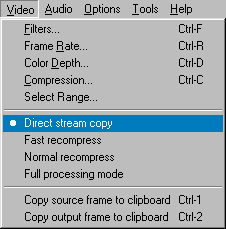
- From the "Video" menu, select "Direct Stream Copy".
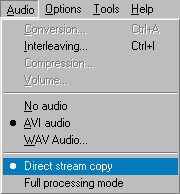
- From the "Audio" menu, select "Direct Stream Copy".
- From the "Audio" menu, select "Interleaving" and disable (uncheck) the A/V interleaving option.
- From the "File" menu, select "Append AVI Segment" and load in your second file. Keep on doing this until all of your files are loaded (please make sure you load them in the right order, from the first file, to the last).
- From the "File" menu, select "Save as AVI" and save the AVI as a new file.
1 2 
