

 Home
Home

Page 1 of 4: Installation + Ripping
This guide shows you how to use VobSub/DirectVobSub and related tools for subtitle ripping, playback and encoding (turning subtitles files into hard-coded subtitles).
Software you will need:Make sure you download and install both VobSub (needed for subtitle extraction) and VSFilter/DirectVobSub (needed for playback).
If you plan on turning subtitle files (in text formats) into hard-coded/burnt subtitles (for players that do not support separate subtitle files), then during the installation of VobSub, make sure the "TextSub" option is selected. Alternatively, you can simply download this WinRAR package, and extract the "textsub.vdf" file to your VirtualDub "plugins" directory (eg. "C:\Program Files\VirtualDub\plugins").

How to rip the subtitle files.
After you have downloaded and installed both VobSub and the VSFilter/DirectVobSub, click "Start", then click "Run", then type in either "cmd" or "command". After clicking "OK", the "MS-DOS" command prompt window will pop up. (Screen Shot Below)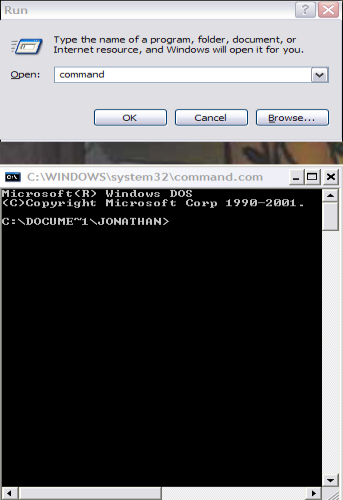
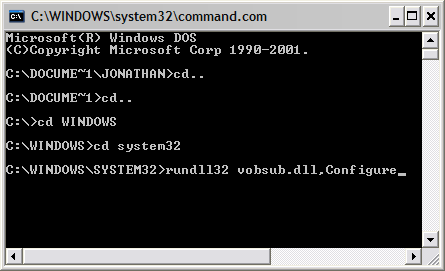
We need to be in the same directory as vobsub.dll . (I did a search on my hard drive for "vobsub.dll" to see what directory it was actually in. It was in the "C:\WINDOWS\system32" directory, so I need to get to that directory in my MS-DOS prompt window.) On the "MS-DOS prompt window, type in "cd.." to change directors (every time you type cd.. and steps up/back one directory) I did that until I got back to the "C:" directory. From there you now type "cd Windows" to get to the "C:\WINDOWS" directory. Now I need to get to the "system32" directory, so I typed in "cd system 32". Ok now that we are in the same directory as "vobsub.dll", we need to type this command and press "Enter". "rundll32 vobsub.dll,Configure" (without the quotation marks!) and then press "Enter". (Screen Shot Below)
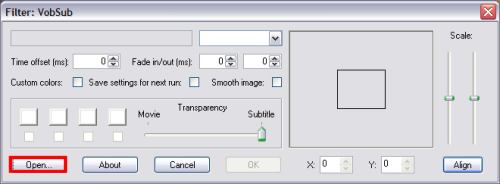
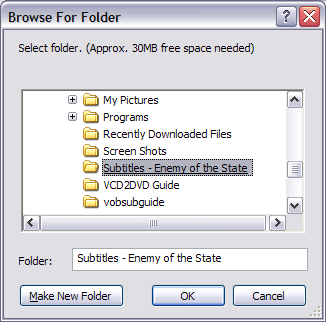
After pressing "Enter", this screen should come up. Go ahead and click the "Open" button and select the ".IFO" file of the movie you wish to extract the subtitles from. (After selecting the .IFO file, a screen will pop asking you to select a folder. It says "Approximately 30GB free space needed". Ignore 30GB of free space, just select the folder.) (Screen Shots Below)
Make sure you change/select the "Files of Type" to show .IFO files. (Screen Shot Below)
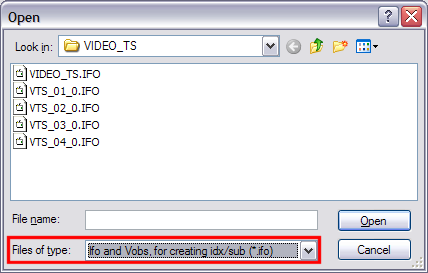
After you select the .IFO file, this screen will come up
After you select the "Folder", this screen will pop up. On the right side (the green box), it shows you all the subtitle streams that VobSub found. If you would like to remove any or add some other streams, you can just select them and press the
 button (to add) and the
  button (to remove) to add and remove streams. On the left hand side (Blue Box), here it tells you what PGC (Program Chain) was selected. By default VobSub automatically selects "Program chain no.1". Make sure "Reset time at the first included vob/cell" has a check mark in the box (Red box). After that, click the "OK" button. (Screen Shot Below)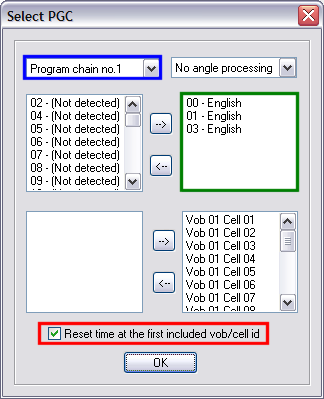
After clicking "OK" on the previous screen, VobSub will start "Indexing" the file (time it takes will vary). After "Indexing", this screen will pop up. Select the appropriate subtitle language etc. (red box) and set the colors of your subtitles and their transparencies (blue box). You can also move them to a different spot, if you don't like were they are originally located (green box). After all that, go ahead and press the "OK" button. (Screen Shot Below)
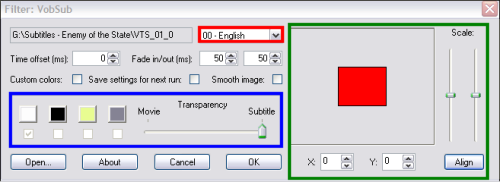
After a while when it's done indexing press OK to get back to the filter selection. VobSub will have created 3 new files in the directory you indicated before (to save the index file). These files are named like your ifo file, for instance in our case vts_01_0.ifo, vts_01_0.idx and vts_01_0.sub. Rename these 3 files so that they have the same name as your AVI file. For instance if your AVI is called matrix.avi rename vts_01_0.ifo to matrix.ifo, vts_01_0.idx to matrix.idx and vts_01_0.sub to matrix.sub. You can also compress the .sub file using WinRar.
When VobSub gets done Indexing (times will vary), press the "OK" button to return to the "Filter Selection"

